Calibrate a Phone Sound Meter: Step-by-Step Guide
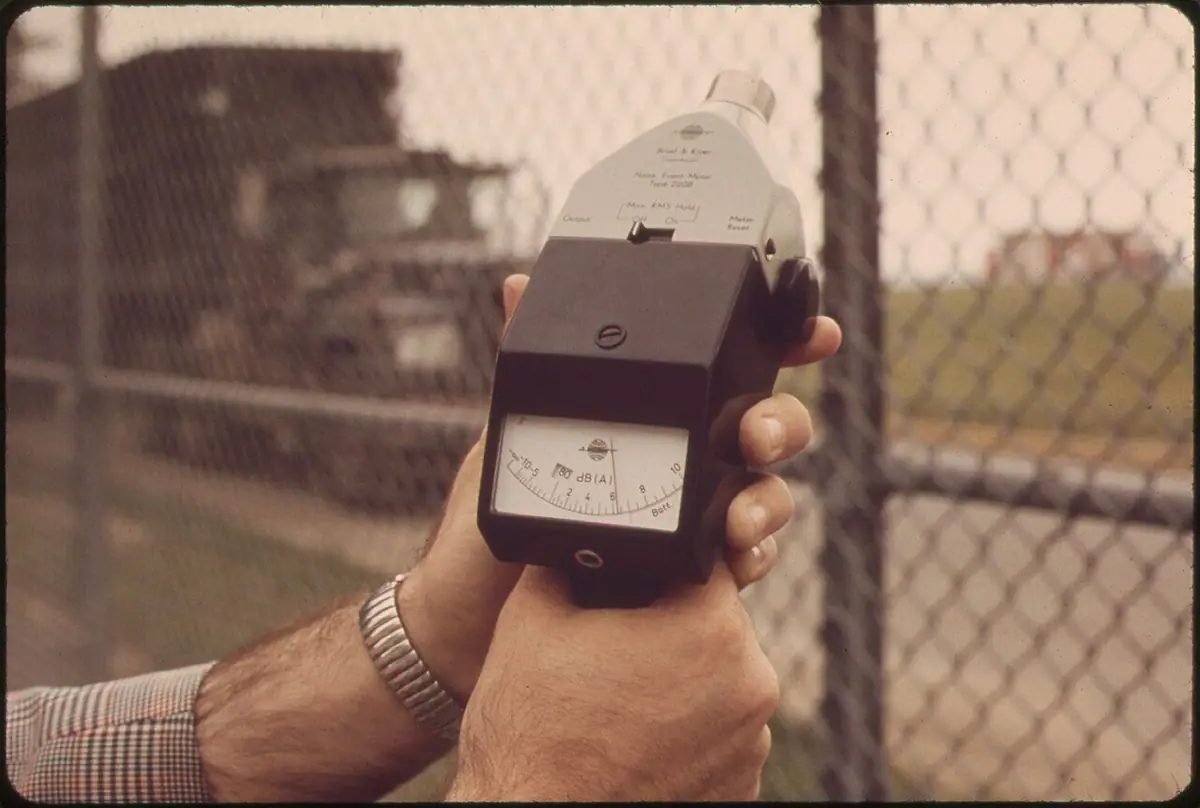
To calibrate a phone sound meter, measure the same steady sound with your phone and with a trusted reference: a Class 1 or Class 2 sound level meter, or an acoustic calibrator producing 94 dB at 1 kHz. Then adjust the phone’s offset until the two readings match. In Reatims, that offset is a slider below the meter, and it is saved in your browser’s localStorage. Calibration fixes the overall sensitivity error. It does not turn a phone into a certified instrument.
Why phone microphones need calibration
A microphone produces a digital signal, not a pressure reading in pascals. To show decibels, a meter has to assume how many digital units correspond to a given sound pressure. That assumption is the microphone’s sensitivity, and it varies:
- Between models. Different phones and laptops use different microphone capsules and preamps.
- Between units. Even two identical phones can differ by a few dB.
- Between microphones on one device. Many phones have two to four mics, and the browser may not use the one you expect.
- Over time. Dust, lint, or a case covering the port can change the reading.
Reatims starts from a nominal assumption (a full-scale digital signal reads as 100 dB) that is a rough average for built-in mics. That’s why every reading is labeled “estimated dB(A), uncalibrated” until you set an offset.
What counts as a good reference
A sound level meter (IEC 61672)
Professional sound level meters are built and tested against IEC 61672, which defines two performance classes:
- Class 1: precision instruments for lab and field use with tight tolerances.
- Class 2: general-purpose meters with somewhat wider tolerances, common in occupational surveys.
Either one makes a useful reference. Ideally, check the meter itself with its own field calibrator before you start. A cheap “decibel meter” with no class rating is better than nothing, but it may not be more accurate than your phone.
An acoustic calibrator (94 dB at 1 kHz)
An acoustic calibrator is a small device that fits snugly over a measurement microphone and produces a known tone, most commonly 94 dB SPL at 1 kHz. 94 dB SPL corresponds to exactly 1 pascal; our SPL to pressure converter shows the math.
Calibrators are designed for standard measurement microphones (usually half-inch capsules). They can’t seal properly over a phone’s tiny built-in mic port. They work well with an external measurement microphone plugged into the phone or laptop.
A reference app on iOS
If you can’t borrow a meter, the NIOSH Sound Level Meter app is a reasonable cross-check on iPhone and iPad. NIOSH lists it as accurate within ±2 dBA. It was tested in NIOSH’s acoustics lab and meets Type 2 requirements of IEC 61672-3 when used with a calibrated external microphone. NIOSH states the app is only available on iOS and that verifying an Android app is not currently possible.
Treat any app as a secondary reference, not a calibration standard.
How to calibrate the Reatims meter
1. Prepare the setup
- Use a quiet room with no fans, HVAC noise, or traffic in the background.
- Remove any phone case that covers the microphone.
- Close other apps that may be using the microphone (calls, voice assistants, recorders).
- Open the sound level meter in a regular browser tab, not a private window, so the offset is saved.
2. Make a steady test sound
You need a sound that holds a constant level for at least 30 seconds:
- Best: an acoustic calibrator on an external mic.
- Good: pink noise from a speaker. Use our noise generator on a second device, or a steady 1 kHz tone.
Set the level to roughly 70 to 85 dB at the measurement spot. That’s loud enough to be well above background and well below where phone mics start to compress.
3. Position both microphones
Place the phone and the reference meter side by side, as close together as possible, at the same distance from the speaker (about 1 m works well). Point both mics the same way. Keep your hands and body out of the path, since reflections can shift readings by a decibel or two.
4. Compare and adjust
- Set the reference meter to A-weighting and slow response.
- In Reatims, press Start and switch to Slow response.
- Let both settle for 15 to 30 seconds, and compare averages rather than flickering values. The Leq figure is the most stable.
- Move the Calibration offset slider (range ±30 dB, in 0.5 dB steps) until the Reatims reading matches the reference.
5. Check at a second level
Turn the source down by about 10 dB and compare again. If both readings drop by the same amount, the calibration holds over that range. If they diverge noticeably, the phone may be applying processing or compressing at one end. Note the range where they agree and trust readings mostly within it.
What calibration can’t fix
A single offset corrects one number at one level and one frequency mix. It cannot correct:
- Frequency response. Phone mics often lose sensitivity at low bass frequencies and may have peaks in the treble. Sounds dominated by low frequencies, such as HVAC rumble or subwoofers, may read differently than your pink-noise test. The spectrum analyzer gives a rough view of what’s in a sound.
- Very loud sound. Built-in mics and preamps often clip or limit at high levels.
- Very quiet sound. Self-noise of the microphone sets a floor below which readings stop dropping.
- OS processing. Reatims asks the browser to turn off echo cancellation, noise suppression, and automatic gain control, but some devices and browsers ignore the request.
See smartphone sound meter accuracy for what NIOSH research found.
External microphones
If you need better accuracy, an external measurement microphone is the biggest upgrade. In a 2016 follow-up study, NIOSH researchers Kardous and Shaw tested the best-performing iOS apps with calibrated external microphones and found readings within ±1 dB of the reference. That was tighter than with the phones’ built-in mics.
With an external mic:
- Select it as the browser’s audio input (check site settings if the browser picks the built-in mic).
- Calibrate with an acoustic calibrator at 94 dB / 1 kHz if the capsule fits.
- Recalibrate whenever you swap microphones or adapters.
Keep the offset honest
- The offset is stored per browser, per device. A new phone, a different browser, or cleared site data means starting over.
- Recheck every few months, or after a drop or a new case.
- For legal, compliance, or medical purposes, use a calibrated Class 1 or Class 2 meter operated by a qualified person. A calibrated phone is still an estimate.
FAQ
Can I calibrate a phone sound meter without a reference meter?
Not accurately. Without a known reference level you have no way to know how far off the microphone is. Borrowing a Class 1 or Class 2 meter, or using an acoustic calibrator with an external mic, is the reliable route.
Where does Reatims store my calibration?
The offset is saved in your browser's localStorage on that device only. It is never uploaded, and it is cleared if you clear site data or use a private window.
Do I need to recalibrate if I switch phones or browsers?
Yes. Each microphone and audio path is different, and localStorage is per browser and per device, so set a new offset for each combination you use.
Will calibration make my phone as accurate as a real sound level meter?
No. A single offset corrects the overall sensitivity at the level and frequency you calibrated at, but it cannot fix frequency response, very loud or very quiet ranges, or processing the operating system applies.